

Windows 11's New Hidden Setting: Open Apps Maximized
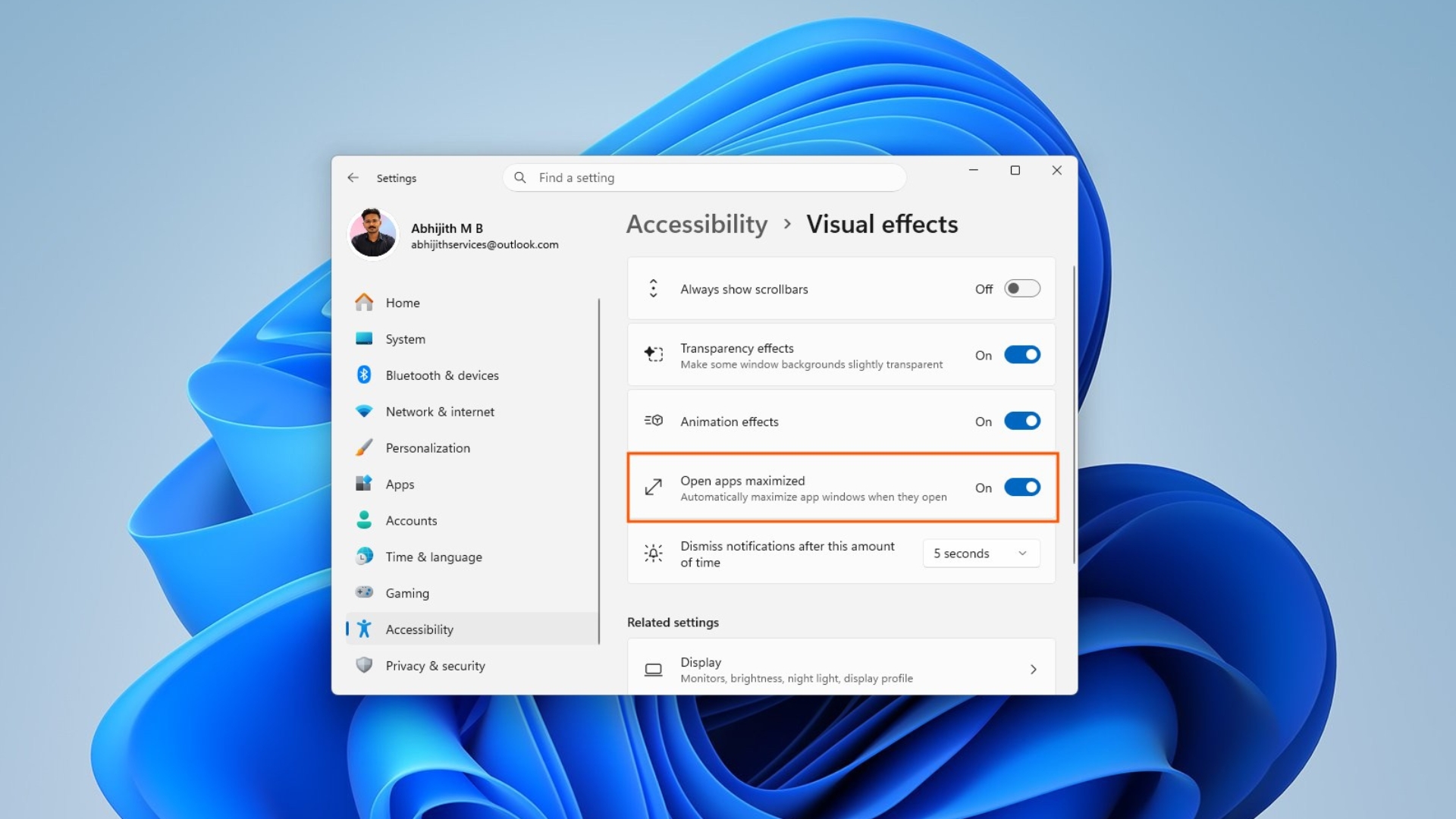
Windows 11 Insider Preview Experimental build 26340.9212 introduces a new hidden feature called Open apps maximized. As the name suggests, enabling this setting causes apps to launch maximized by default, instead of retaining their previous window size. This feature, while still in testing, is toggleable for some users on the Experimental channel.
MS has yet to make any official announcement regarding this feature, indicating that it is likely in the early stages of development. However, its presence in the Experimental build suggests the company is exploring its potential usefulness.
How to Access the Open Apps Maximized Setting
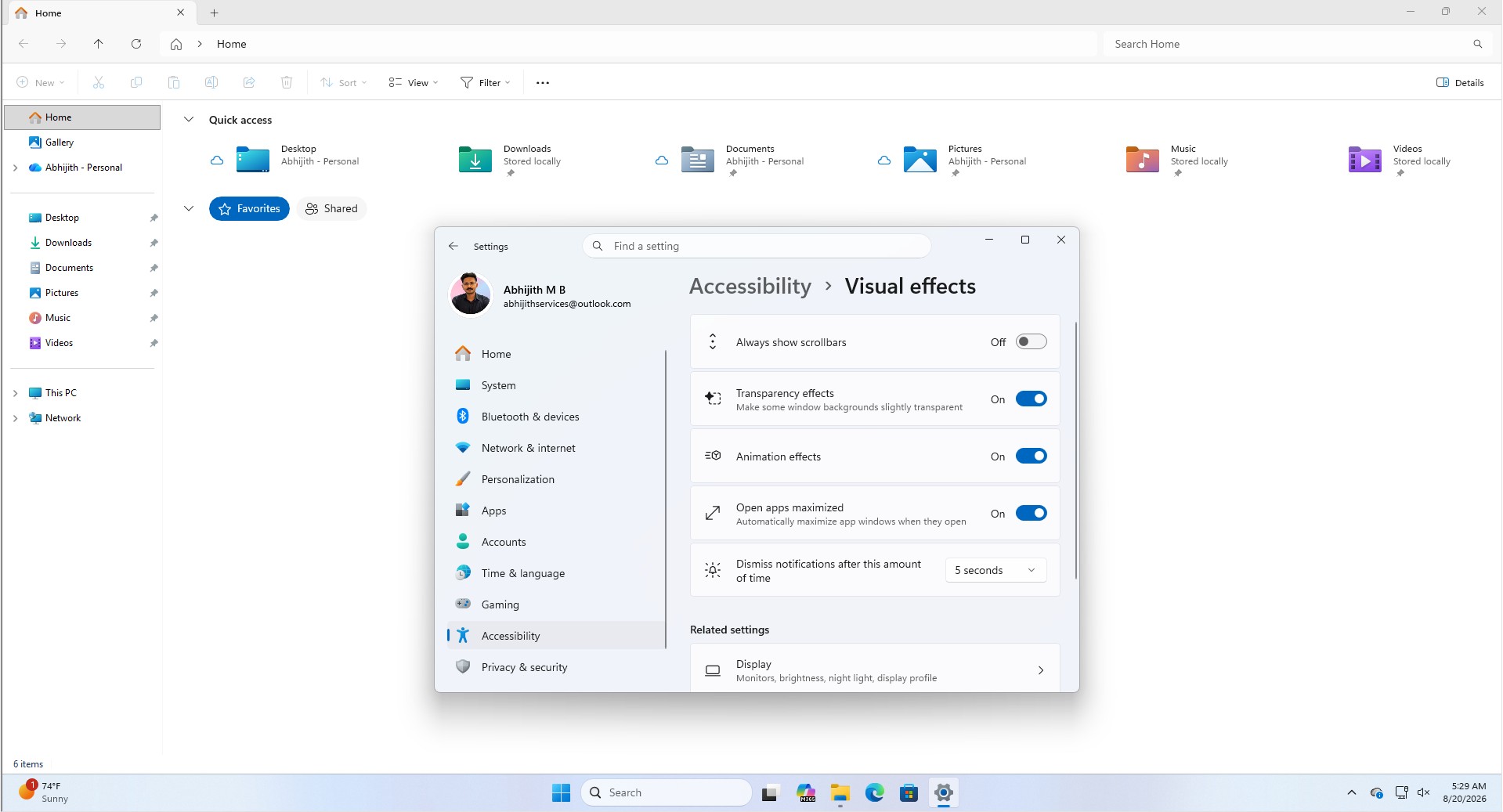
The Open apps maximized feature can currently be found under Settings > Accessibility > Visual effects, alongside other options like Transparency effects and Animation effects. Early tests show the feature works seamlessly for all applications, making it a convenient option for users who frequently click the maximize button.
Optimized for Smaller Screens
While the Open apps maximized feature may not appeal to users with larger monitors, such as a 27-inch display, it makes much more sense for smaller screens. For instance, on a 14-inch laptop, users often maximize apps as soon as they open them, making this feature a time-saving convenience by eliminating repetitive clicks.
Compact devices like 13- or 14-inch laptops, the MS Surface Pro's 12-inch screen, and Windows tablets stand to benefit most. On touchscreen devices, in particular, hitting the small maximize button with a finger can be cumbersome. Although Windows tablets are less common these days—replaced by 2-in-1 devices like the upcoming NVIDIA RTX Spark-powered Lenovo Yoga 9n—this setting could still prove useful for touchscreen users.
Additionally, Windows gaming handhelds often employ XBOX mode for fullscreen gaming. For users who switch back to the standard Windows desktop environment, a feature that bypasses windowed mode entirely can enhance the user experience.
Room for Improvement
Testing the feature revealed that when the setting is turned off, Windows continues to remember the last window state used by an app, which could be confusing. A better implementation might involve restoring the app’s original window size when the setting is deactivated. Another enhancement could be the ability to customize which apps the setting applies to, though such granular control might be too ambitious for a simple toggle.
Further, the feature could benefit from being display-aware. For example, it could automatically enable itself on smaller screens like a laptop and disable itself when the system is connected to a larger monitor.
Interestingly, this feature was first identified by Windows watcher phantomofearth. A reply to their post on social media proposed another potential enhancement: an option to open apps centered on the screen instead of maximized, which could cater to a different set of user preferences.
How to Enable Open Apps Maximized in Windows 11
The feature is still experimental and may not appear for all users, even if they are running the correct build. To enable it:
- Ensure you are running Windows 11 Insider Preview Experimental build 26340.9212 or newer.
- If the toggle is not visible under Settings > Accessibility > Visual effects, download ViVeTool from its official GitHub repository.
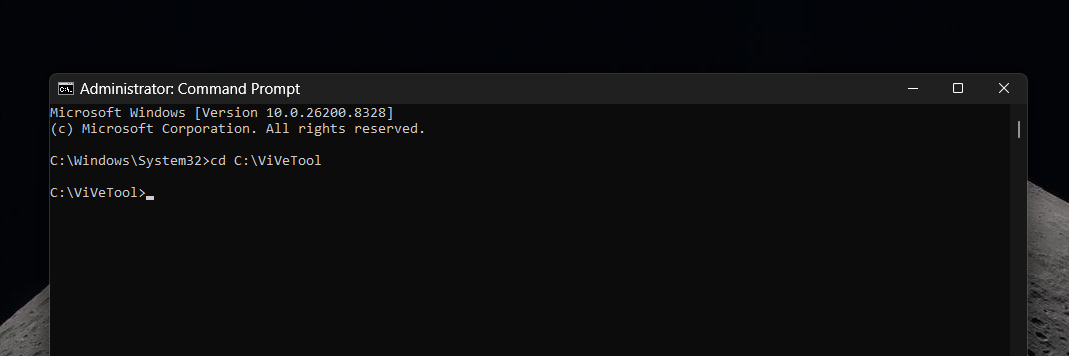
- Extract the ViVeTool folder, open Command Prompt or Terminal as an administrator, and navigate to the extracted folder.
- Run the following command:
vivetool /enable /id:62915050. - Restart your system and check Settings > Accessibility > Visual effects for the new toggle.
To disable the feature, use the command vivetool /disable /id:62915050 and restart your PC. Note that this command is specific to the current Experimental build and may not work in future updates.
Final Thoughts
At present, this feature remains a controlled test within the Experimental channel, and MS has not provided any official updates on its future. Whether it progresses to Beta, Release Preview, or a stable build will likely depend on user feedback. Despite its simplicity, Open apps maximized has substantial potential, especially if MS incorporates enhancements like display-awareness or app-specific customization.
If you’re intrigued by this feature, consider sharing your thoughts with MS to help shape its development. For now, we’ll wait to see if this experimental feature becomes part of a future Windows 11 update.
